

The Ultimate Guide to Optimizing Your Google My Business (GMB) Profile
15 February 2025
In the competitive digital landscape, Google My Business (GMB) plays a crucial role in local SEO. A well-optimized GMB profile can help businesses attract local customers, improve search rankings, and establish credibility. However, many businesses fail to leverage their GMB profiles effectively.
This comprehensive guide breaks down 14 essential steps to optimize your GMB profile
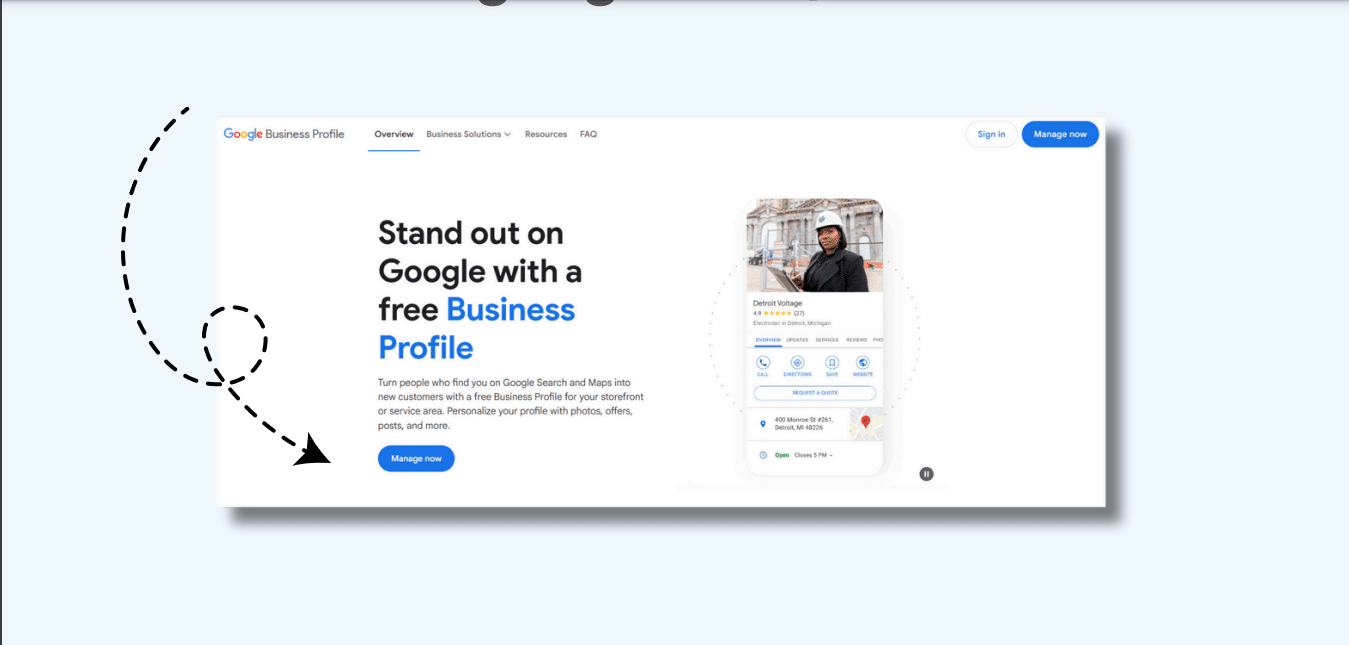
1. Sign In or Create a Google Account
The first step in setting up a GMB profile is to log into your Google account. If you don’t have an account, create one at Google Accounts. This account will be used to manage your business profile, respond to reviews, and track insights.
Pro Tip: Use a business email instead of a personal email for better credibility and management.
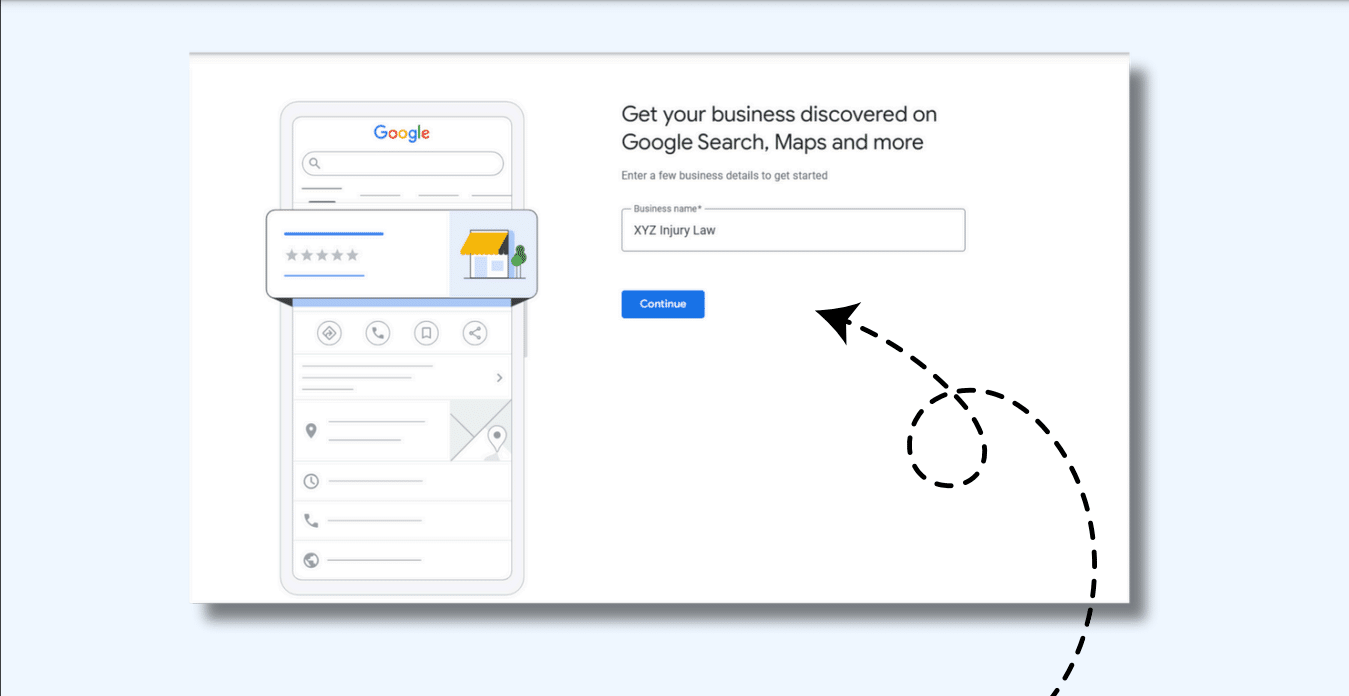
2. Enter Your Business Name Correctly
Your business name should match your official branding to maintain consistency.
Follow these best practices:
- Use Title Case (capitalize the first letter of each word).
- Avoid unnecessary keywords or promotional phrases (e.g., “Best Pizza in NYC” is not allowed).
- Make sure it matches the name on your website and other listings to avoid duplicate issues.
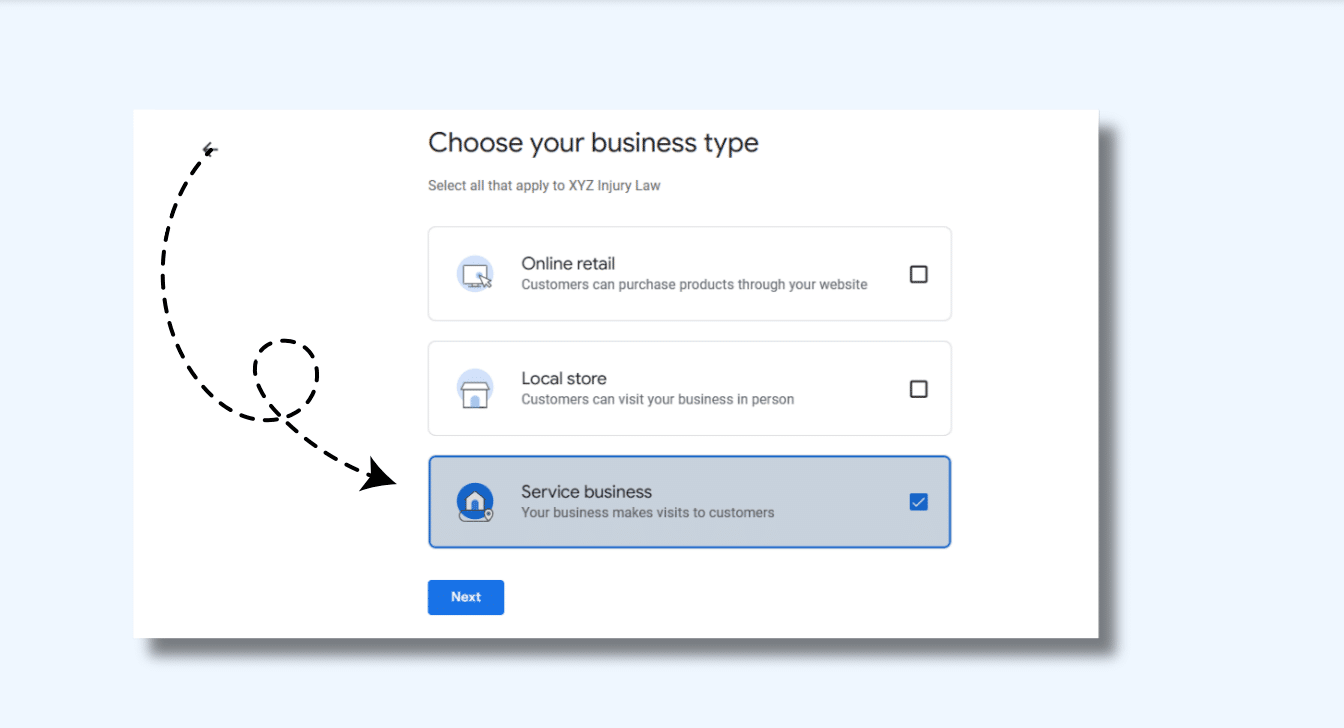
3. Choose Your Business Type
Google allows you to classify your business under three types:
- Physical Location: A store, office, or restaurant where customers visit.
- Service Area Business: Businesses that operate in multiple locations but don’t have a storefront (e.g., plumbers, electricians).
- Online Business: Businesses that provide services digitally without a physical presence.
✔ Select the type that best represents your business.
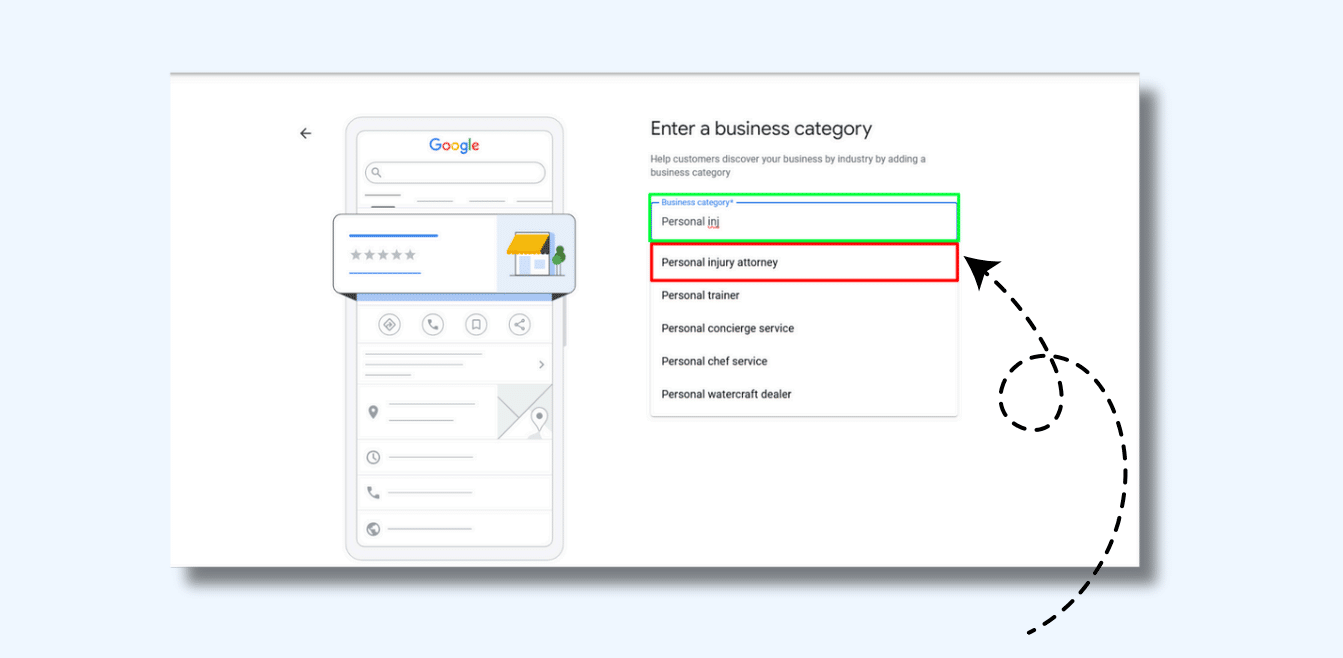
4. Select the Right Business Category
Categories help Google understand what your business offers, which impacts search rankings.
Best practices for choosing categories:
- Select one primary category that best describes your business.
- Add secondary categories related to your services (e.g., “Italian Restaurant” can also have “Pizza Restaurant”).
- Avoid irrelevant categories that don’t align with your offerings.
Pro Tip: Check competitors’ GMB profiles for category inspiration.
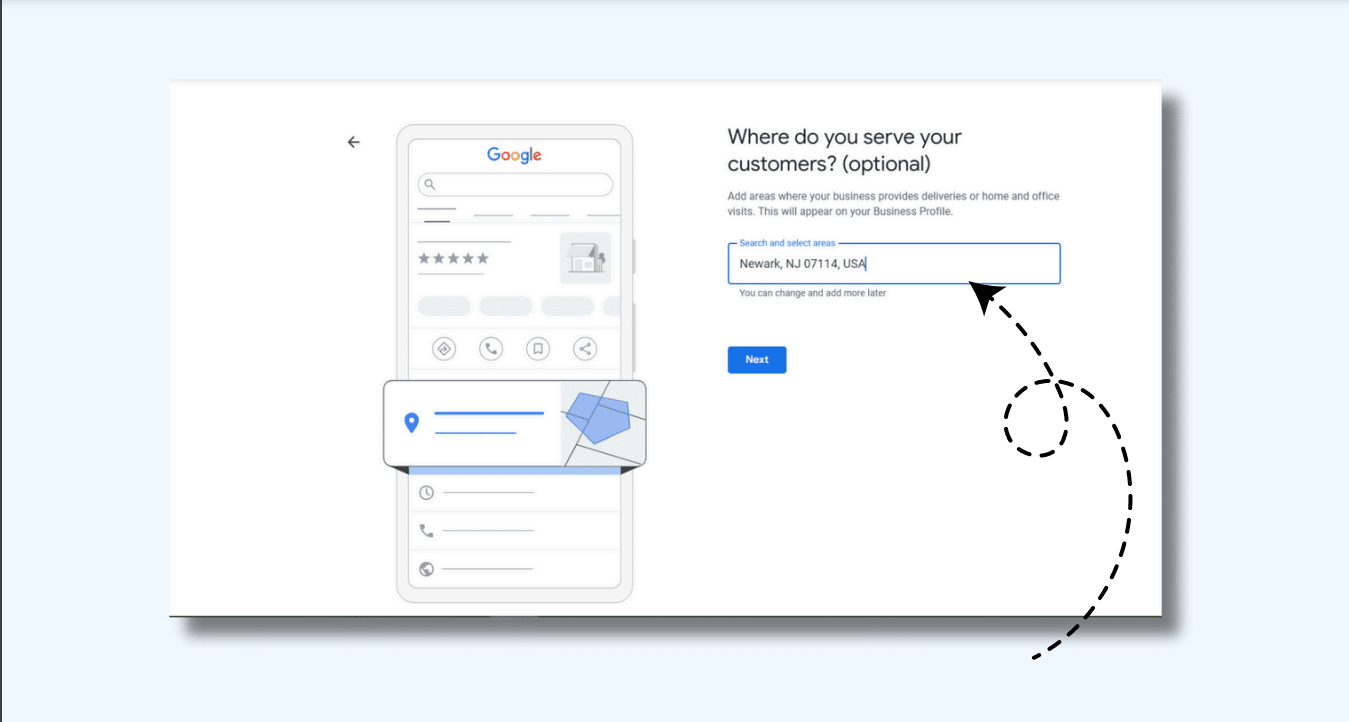
5. Add Your Business Address
For businesses with a physical location, adding a complete and accurate address is crucial.
Address Format:
- Follow Google’s standard format for addresses.
- If your business is home-based, you can hide your address and specify a service area instead.
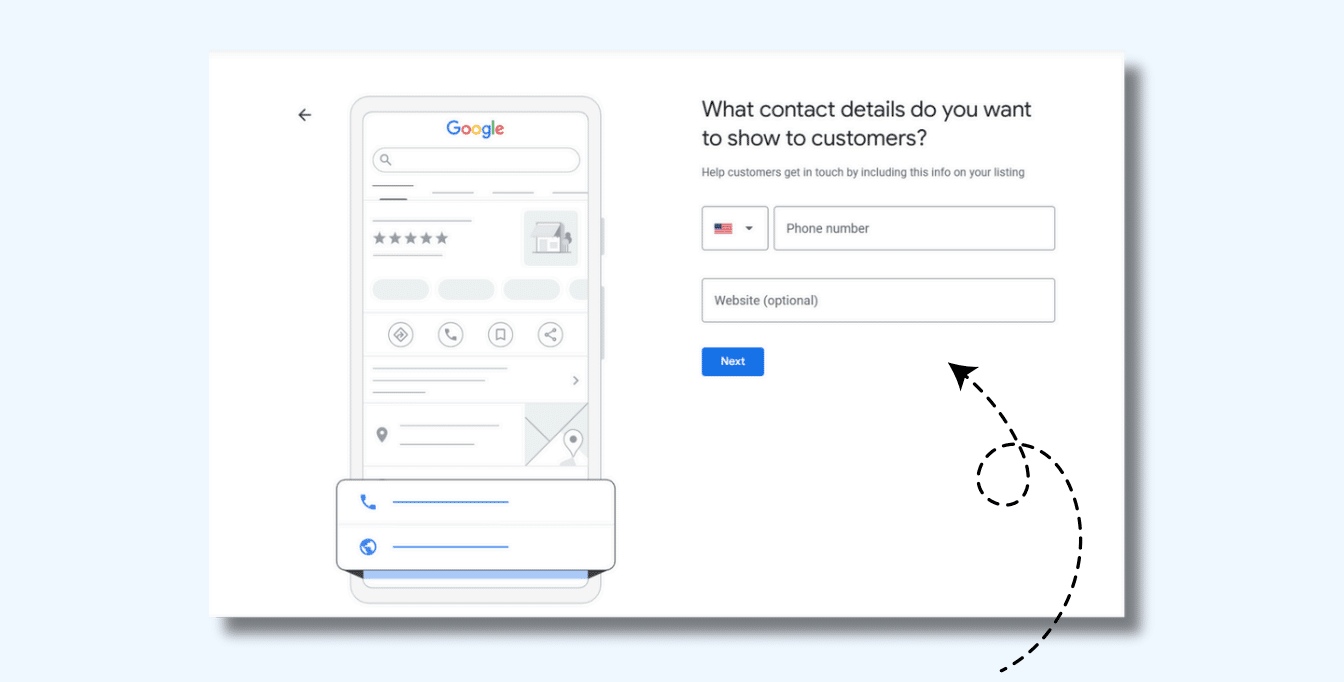
6. Provide Contact Details
Ensure your phone number and website URL are up-to-date.
Why it matters?
- Helps customers contact you easily.
- Enhances credibility and improves local rankings.
- Google verifies businesses based on consistency across online directories.
✔ Pro Tip: Use a local phone number instead of a toll-free number for better local SEO impact.
7. Verify Your Business with Google
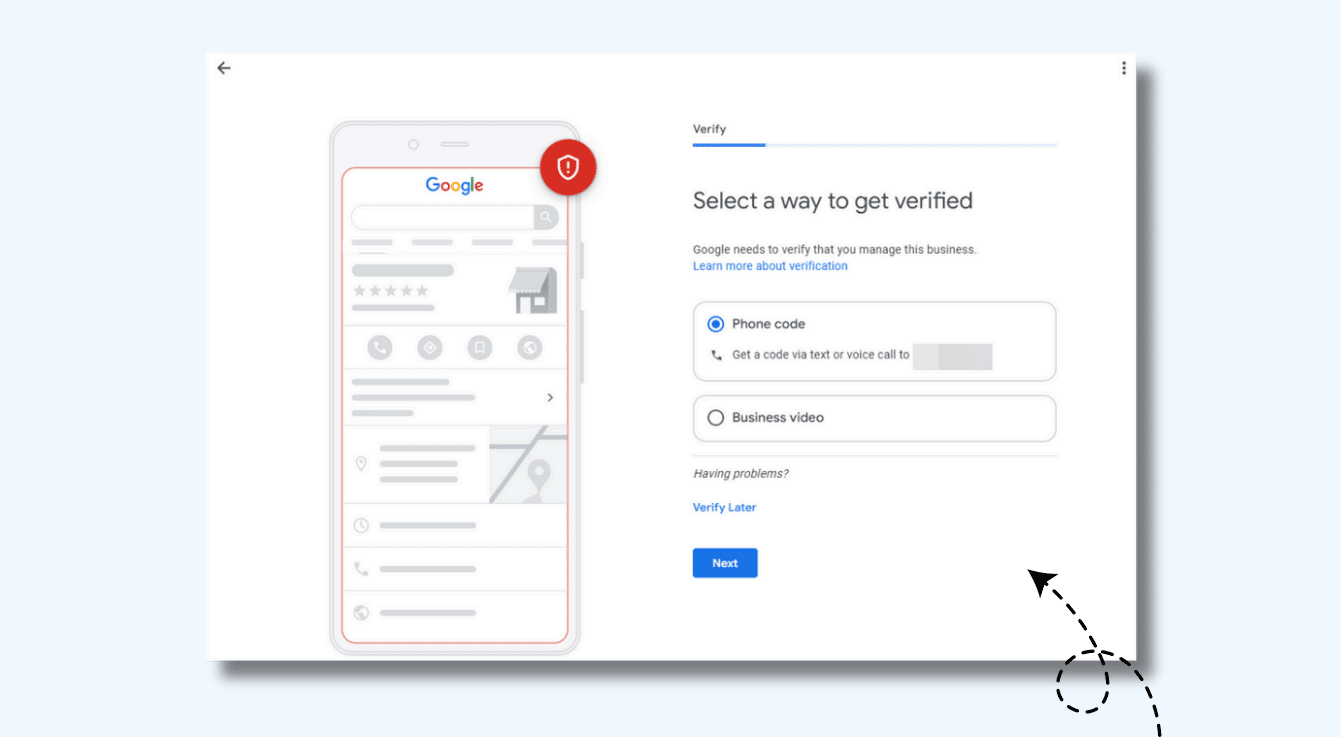
Without verification, your business won’t appear on Google search or Maps.
Ways to verify your GMB profile:
- Postcard Verification: Google mails a postcard with a verification code.
- Phone or Email Verification: Available for selected businesses.
- Video Verification: Submit a video walkthrough of your location, equipment, and signage.
Processing Time: Verification can take up to 7 days.
8. Set Business Hours & Holiday Hours
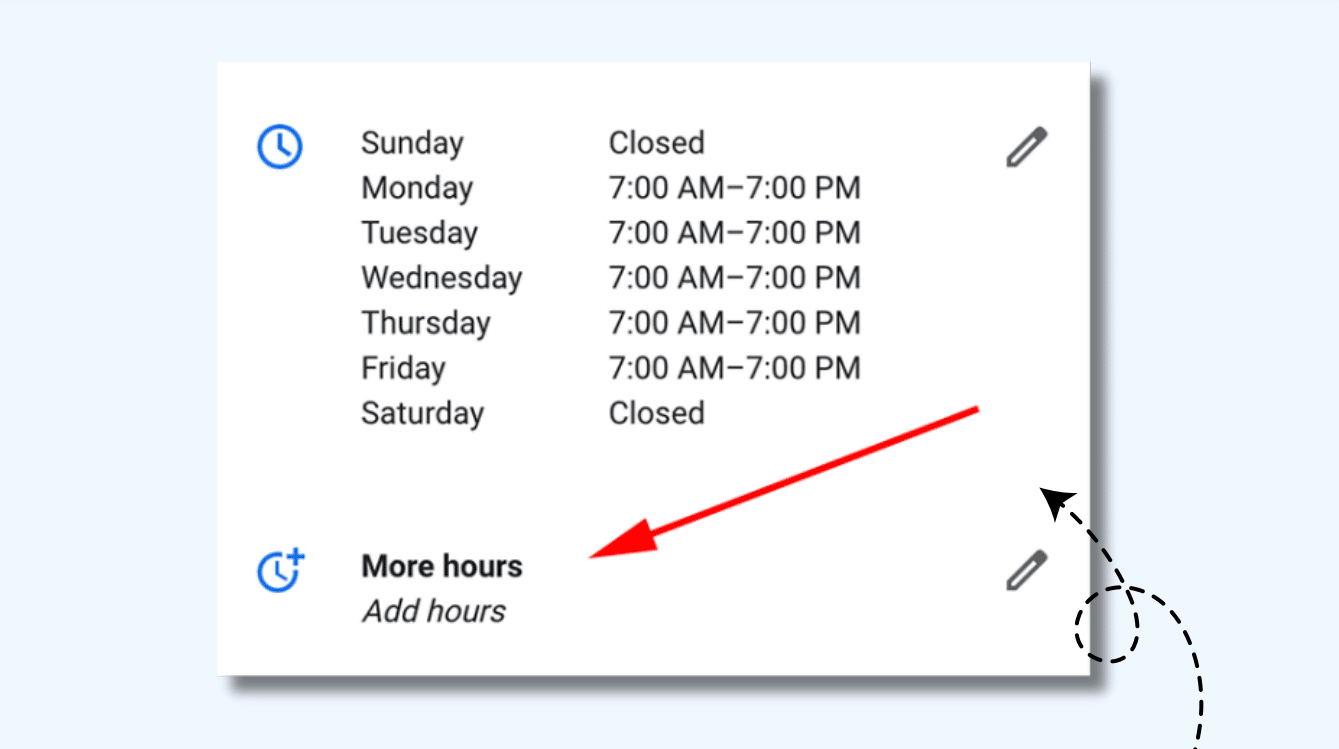
Providing accurate business hours ensures customers visit at the right time.
✔ Update holiday hours in advance to reflect seasonal changes.
✔ Enable 24-hour service if applicable.
Tip: Google rewards businesses that regularly update their hours.
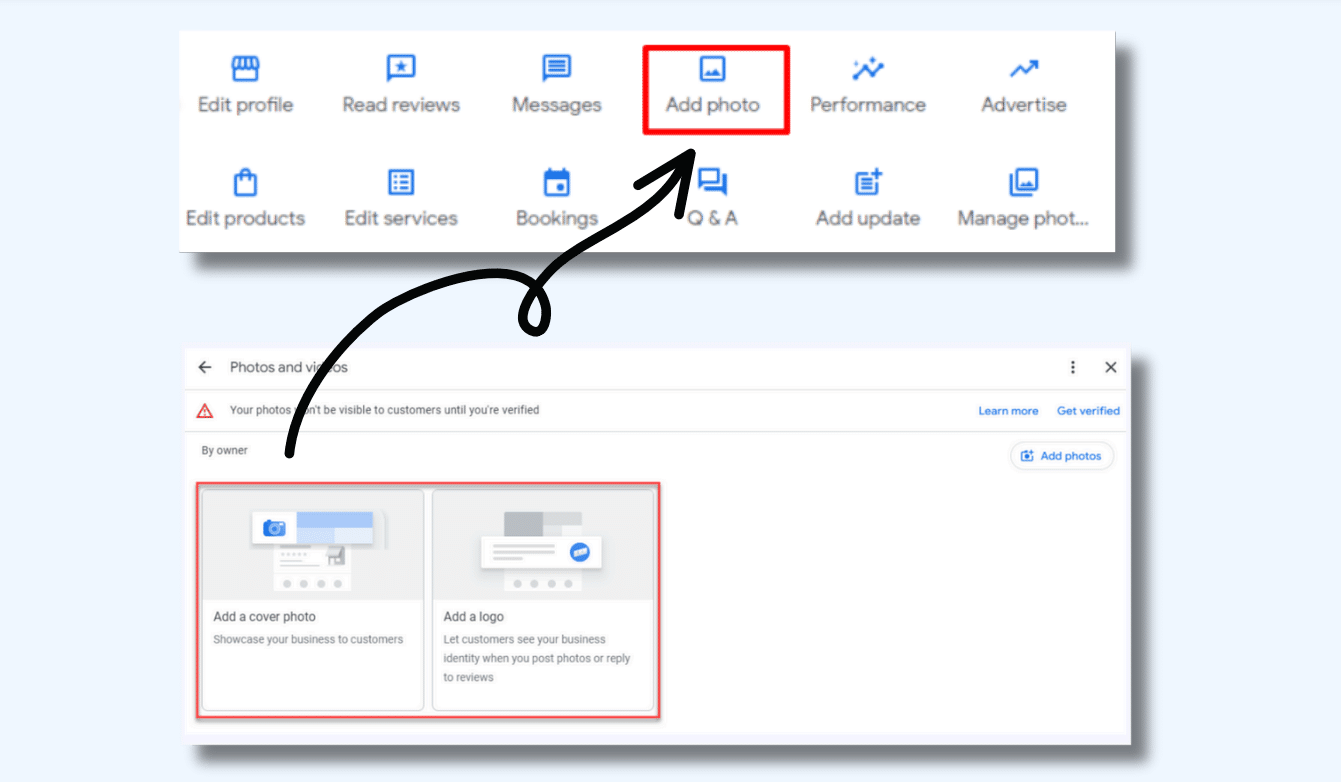
9. Upload High-Quality Photos
Google prioritizes profiles with authentic, high-quality images.
Must-have photos for your GMB profile:
- Logo: Helps with brand recognition.
- Exterior & Interior Photos: Showcases your business location.
- Team Photos: Builds trust with potential customers.
- Product/Service Images: Helps customers visualize your offerings.
✔ Pro Tip: Add geotags to your images before uploading to improve local search visibility.
10. Write a Compelling Business Description
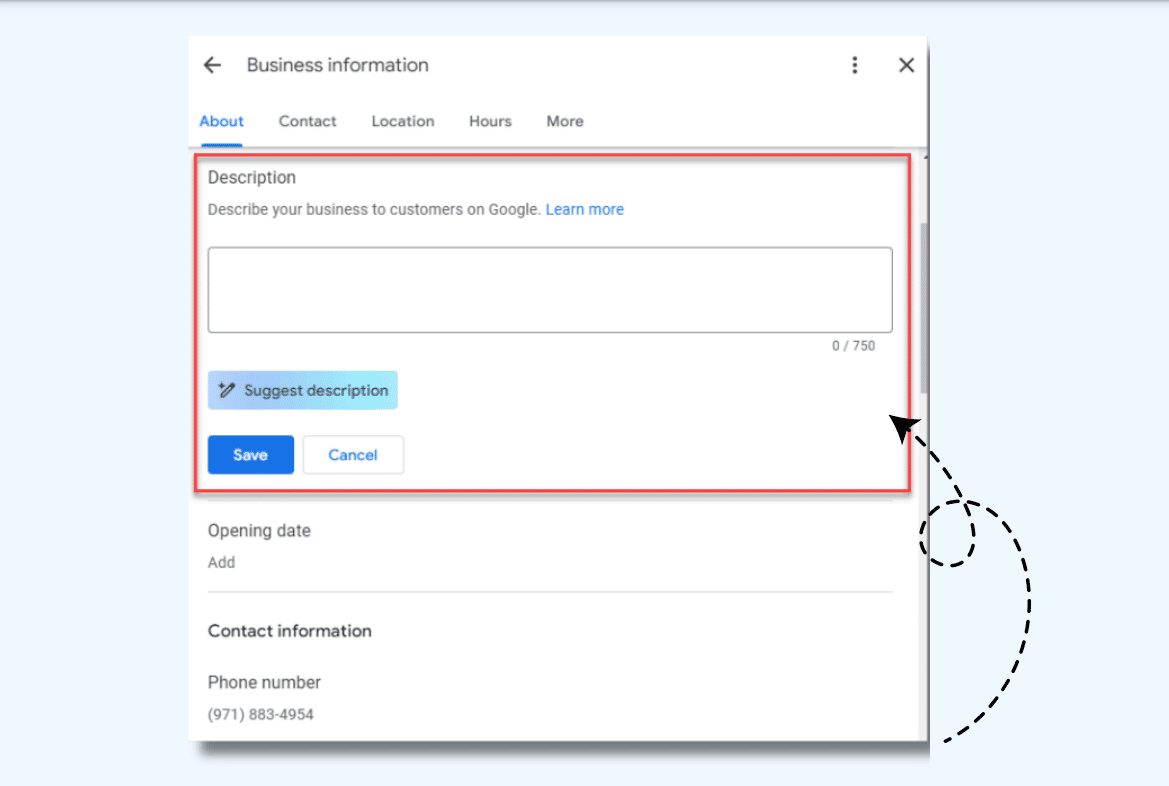
Your GMB description should be concise, engaging, and informative.
Guidelines:
✔ 750 characters max (showcase key services and specialties).
✔ Highlight your unique selling points (USPs).
✔ Include relevant keywords for local SEO without keyword stuffing.
Example:
“XYZ Bakery serves freshly baked organic bread, cakes, and pastries in New York. Visit us for handcrafted desserts and gluten-free options!”
11. List All Your Services
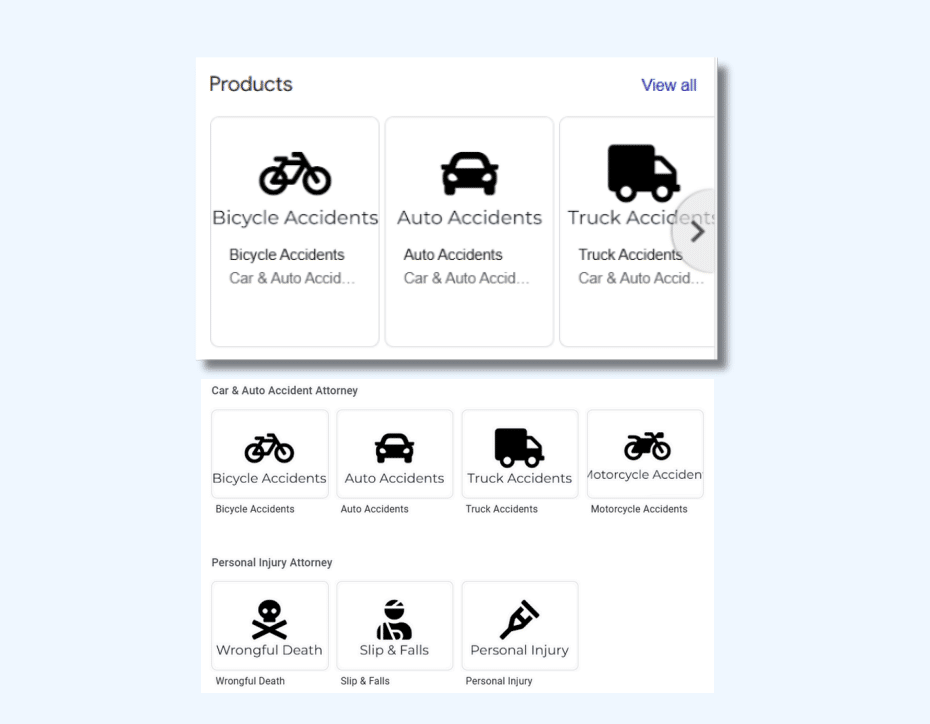
Google allows you to list detailed services to help customers understand what you offer.
Optimization Tips:
- Use clear descriptions for each service.
- Link services to their corresponding pages on your website.
- Regularly update your services to reflect changes.
12. Add Social Media Profiles
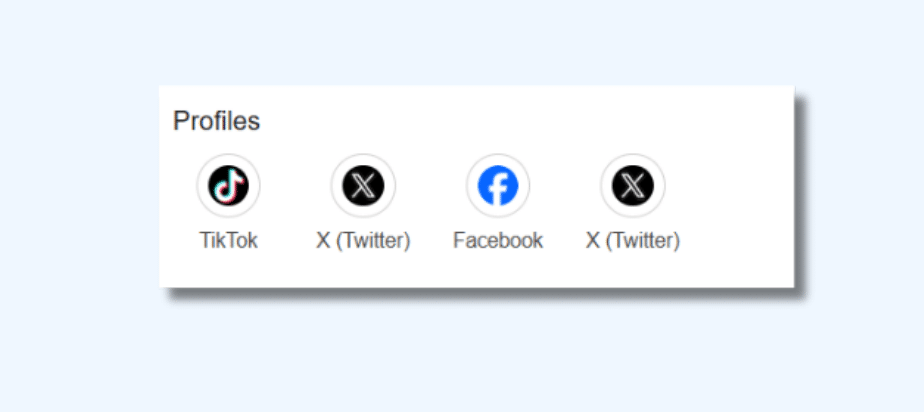
Connecting your social media accounts enhances credibility and engagement.
✔ Add links to Facebook, Instagram, LinkedIn, Twitter, and YouTube.
✔ Share your GMB profile link on your social channels to encourage Google reviews.
Pro Tip: Keep branding and messaging consistent across all platforms.
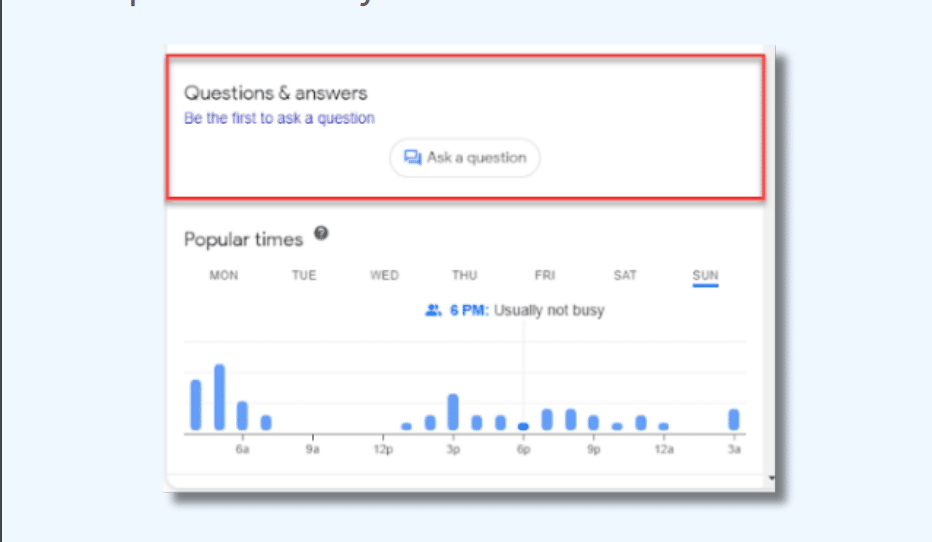
13. Enable Google Q&A
The Google Q&A feature allows potential customers to ask questions directly on your GMB profile.
✔ Best Practices:
- Pre-fill common questions with detailed answers.
- Monitor new questions and respond promptly.
- Encourage satisfied customers to ask relevant questions to enhance engagement.
Why it matters? Google often pulls Q&A content into search results, making your business more visible.
14. Request & Manage Google Reviews
Positive reviews improve credibility and SEO rankings.
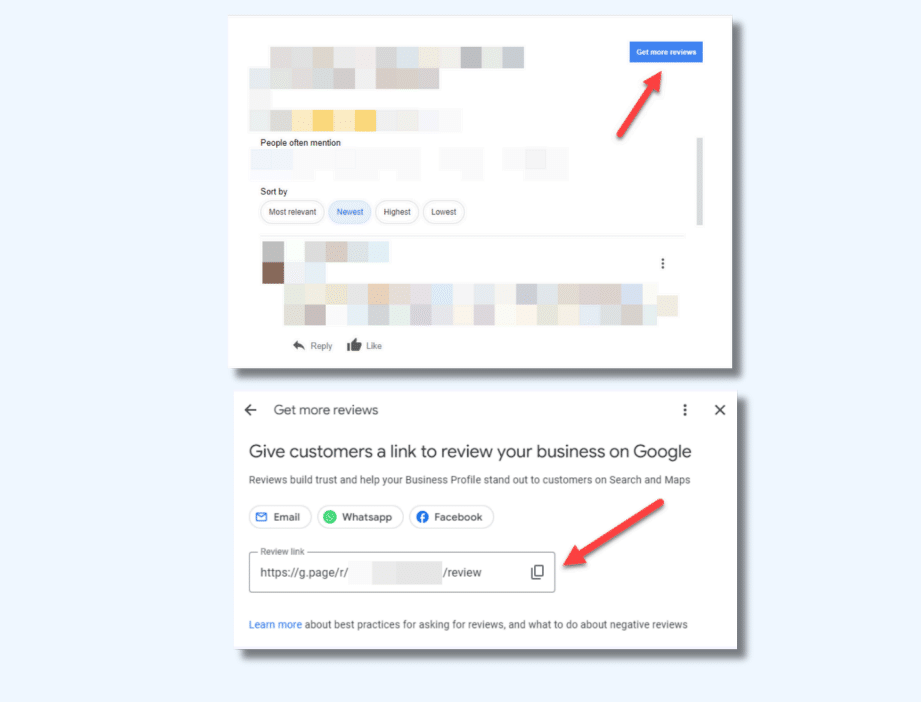
✔ How to get more Google reviews?
- Politely ask satisfied customers for feedback.
- Share a direct link to your review page via email or WhatsApp.
- Respond to all reviews, whether positive or negative, to show professionalism.
Pro Tip: The more recent and frequent your reviews, the higher Google ranks your profile.
Conclusion
Optimizing your Google My Business (GMB) profile is a powerful strategy to improve local search rankings, attract more customers, and build brand trust.
By following these 14 key steps, your business can stand out in local search results and convert more online visitors into customers.
🚀 Need help optimizing your GMB profile?

Devyansh Tripathi
I’m Devyansh Tripathi, an SEO strategist and digital growth expert, helps businesses and individuals rank higher and drive organic traffic. Through DevTripathi., he shares cutting-edge SEO insights, content strategies, and marketing hacks. Passionate about digital success, he’s on a mission to make SEO simple, effective, and result-driven!
Posts
- What Google’s New AI Search Documentation Means for SEO Teams
- Google I/O 2026 Search: AI Agents, Gemini 3.5 and the Unified Box
- Google’s AI Optimization Guide: The Technical and Content Checklist
- July 2026 SEO Update: AI Overviews, llms.txt and Search Console
- Prompt Optimization Beyond Page One: The Position-21 Citation Opportunity
Categories
- AI Citation Optimization
- AI Search Optimization (AISEO)
- AI Visibility Tracking
- Answer Engine Optimization (AEO)
- Brand Authority SEO
- Brand SERP Optimization
- Community Signal SEO
- Conversational Search Optimization
- Generative Engine Optimization (GEO)
- Knowledge Graph Optimization
- Modern SEO Strategies
- Multimodal Search Optimization
- Prompt Optimization
- SEO Trends
- Social Search Optimization
- Topical Authority SEO
- Uncategorized
- Video Search SEO
- Visual Search Optimization
- Voice Engine Optimization (VEO)
- Zero Click Search Optimization
Latest News
Text Widget
Empowering brands with insights, strategies, and stories that drive digital growth.